


When anyone talks about desktop email clients, Microsoft Outlook always top the list. In fact, it is the name synonymous with work communication. However, like any other application, this is also not immune to errors. Outlook users often face “PST….can’t be accessed” error. In such a case, the data file (.pst) is locked by another process. This issue prevents the user from performing different tasks. The user struggles even to perform backups.
Let’s decode the causes of this error. In majority of cases, it is caused by a corrupt data file (.pst). In some cases, permission errors may lead to this issue, while in some cases this error may arise due to some antivirus or other third-party software. To know more about the subject, checkout our blog titled Fix “PST is in Use and Cannot Be Accessed” Error. This guide will explain what this error means. It will also shed light on some ways to fix this issue. Additionally, it will also unearth a professional PST Repair Tool.
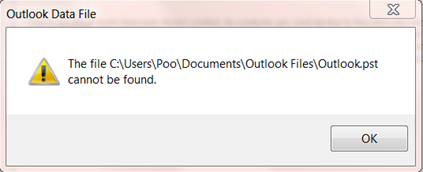
Understanding the Error:
It is always better to understand the causes of this issue. Follow the below guide:
—Outlook is already open in another window or profile
—Outlook did not close properly during the last session
—The PST file is stored on a network drive or external storage
—Antivirus or backup software is scanning or locking the PST file
—A damaged data file (.pst) can also lead to this issue.
— This error will also pop up if the location of the data file (.pst) has been changed.
— This error may occur if the file is renamed or deleted from its original location.
—Any virus attack may cause this error.
Resolving the Issue:
Let’s move on to learn ways to Fix “PST is in Use and Cannot Be Accessed” Error. Follow the below guide:
Method 1: Outlook Storage Inspection and Cleanup:
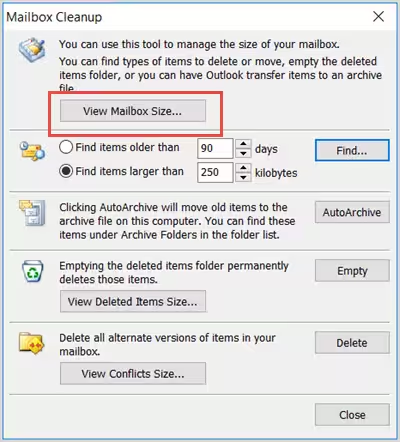
It is always better to start with the basics. In majority of cases, an oversized file is the main culprit behind corruption issues or other errors associated with the PST file. Remove some unwanted files from the Outlook and follow below steps to view the mailbox size:
- Start the Outlook app.
- Go to File.
- Explore the Mailbox Cleanup.
- Press the View Mailbox Size tab.
- Hit on the Folder.
- Select the concerned account.
- Visit the Folder Properties after that inspect the Folder Size.
- Check the amount of space in the mailbox.
- Take action after inspecting the Outlook space.
Method 2: Compact the File: The step-by-step guide is mentioned below:
- Navigate to the Windows Search bar.
- Type “Control Panel” and open it.
- Search for the mail in the Control Panel, then click on it.
- Tap on the Data Files button.
- Choose the targeted PST file and hit on Settings.
- Go to the General tab.
- Press the “Compact Now” tab to start the repair process.
- After this, restart the Outlook app to check whether the issue is fixed or not.
Method 3: Create a New PST File:
If the problem still persists, try creating a new Outlook data file (.pst). First locate the file. There are two different approaches to trace the file location.
Option 1:
- Explore Outlook.
- Right-click on the Archives folder.
- Choose the Open File Location.
- Locate the Outlook data file.
Option 2:
- Browse the Control Panel.
- Navigate to Mail.
- Then go to Mail Setup-Outlook.
- Now select Show Profiles.
- Go to Properties>>Data Files.
- Go to the Account Setting wizard to locate the .ost file and .pst file locations.
- Copy the location. The user can also browse “Open…Location.”
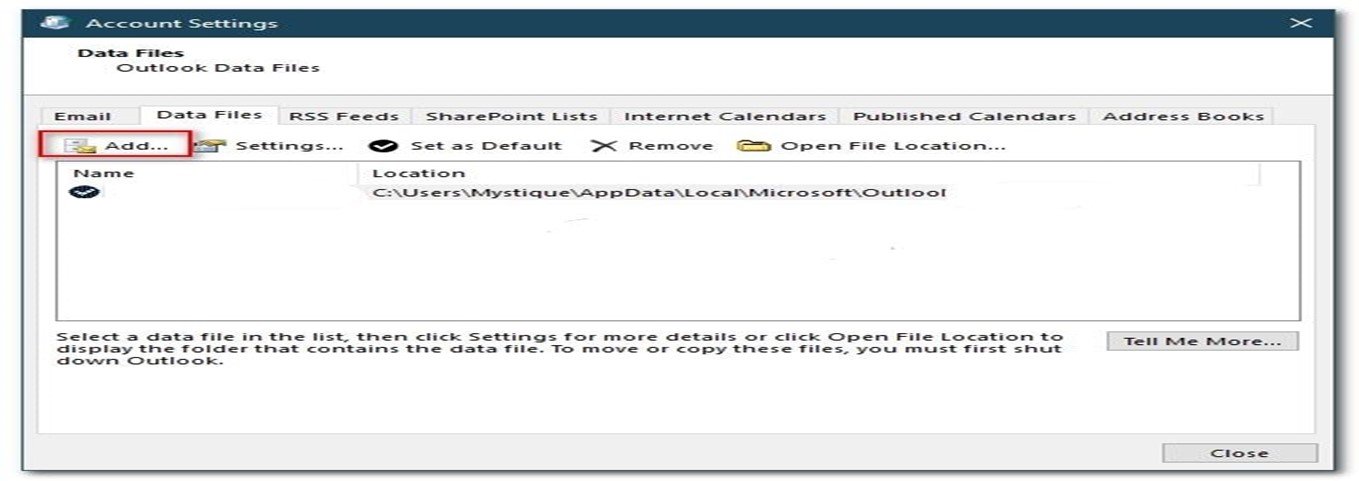
- After locating the file, follow the below steps to create a new Outlook data file (.pst):
- Press the Window+R to open the Run dialog box.
- Type “Control Panel” and then click OK.
- After opening the Control Panel, search for “Mail” and explore the “Mail (Microsoft Outlook)” option.
- Hit on the “Show Profiles” tab.
- Now choose “Add” tab to create a new profile.
- Follow the on-screen instructions to set up your email account.
Method 4: Use ScanPST to Fix the Outlook PST Cannot Be Found Issue:
This built-in functionality is termed as the Inbox Repair Tool. It runs multiple scans to detect error and inconsistencies in the file header and structure.
Follow the below steps:
- Locate ScanPST.exe on the following locations:
| Version | Location |
| Office 365\2019\2016: | –For 64-bit Outlook C:\Program Files\Microsoft Office\Office16
–For 64-bit Outlook C:\Program Files\Microsoft Office\root\Office16 –For 32-bit Outlook C:\Program Files(x86)\Microsoft Office\root\Office16 –For 32-bit Windows C:\Program Files (x86)\Microsoft Office\Office16 |
| Office 2013: | –For 64-bit Windows: C:\Program Files\Microsoft Office\root\office15
–For 32-bit Windows: C:\Program Files (x86)\Microsoft Office\root\office15 |
- After locating the built-in utility, shutdown all active applications as well as processes, wait for some time.
- Press Windows + R keys to open the ‘Run’ dialogue box and type %programfiles%/Microsoft Office/ in it. Hit the Enter key.
- Hover the cursor on the targeted PST file.
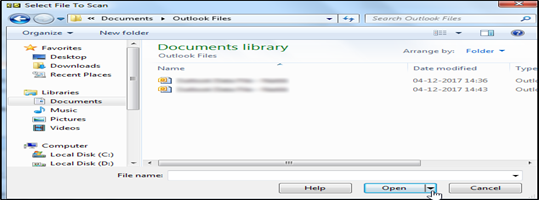
- Start the file scan process.
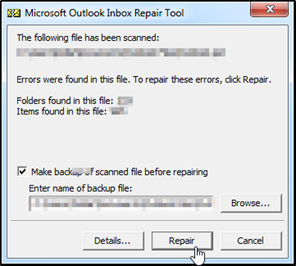
- This utility will highlight errors and inconsistencies in the Outlook data file (.pst). Press the ‘Repair’ button to start the process.
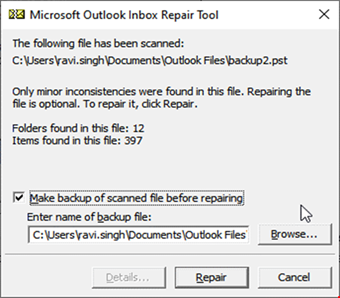
- Select the option to create the backup of the original file. Also tell the path where you want to save this backup file.
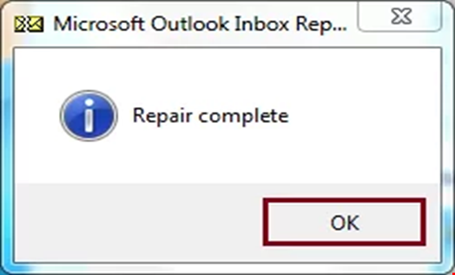
- After the completion of the repair process, check whether all email messages and other mailbox data are in order like before.
Method 5: Repair Using a Professional Tool (Recommended):
There is a possibility that the above methods may not be able to Fix “PST is in Use and Cannot Be Accessed” Error. It is because, these functionalities are capable of resolving minor issues. When the issue is complex and severe, these functionalities, including ScanPST.exe, may fail. These functionalities can’t fix severe file structural inconsistencies. Such a situation demands an advance tool. A user needs to utilize some advance PST Repair Tool. These tools employ superior algorithms. They are developed to easily handle even oversized and encrypted data files (.pst). Experts recommend to use tools like Stellar Repair for Outlook. It is extremely easy to use unlike ScanPST.exe that involves complex manual steps. This converter tool is also user friendly and supports all Outlook versions. It supports recovery even when the file in inaccessible. This software also maintains the original structure of the data file. It shows a preview of your mailbox data as well. Also, it allows export in multiple file formats (EML, MSG, RTF, etc). Additionally, these tools are extremely easy to use.
Conclusion:
In the above guide, we have learned how to Fix “PST is in Use and Cannot Be Accessed” error. We have discussed various factors that can lead to this issue. Such factors range from an oversized data file and change in file location to file deletion, compatibility issues and virus attack. We have also explored 4 methods to resolve this issue. These ways range from storage inspection and cleanup to creating a new PST file and repairing a damaged data file using ScanPST.exe. But these functionalities may not be able to surpass complex scenarios. To save sensitive email messages, attachments and other data, the user needs to employ any PST Repair Tool. These tools are smarter than manual functionalities. Tools like Stellar Repair for Outlook are developed to perform a deeper, more thorough scan. This software bypasses file-locking issues to access data. They can resolve issues in a data file without any size limitations.
